

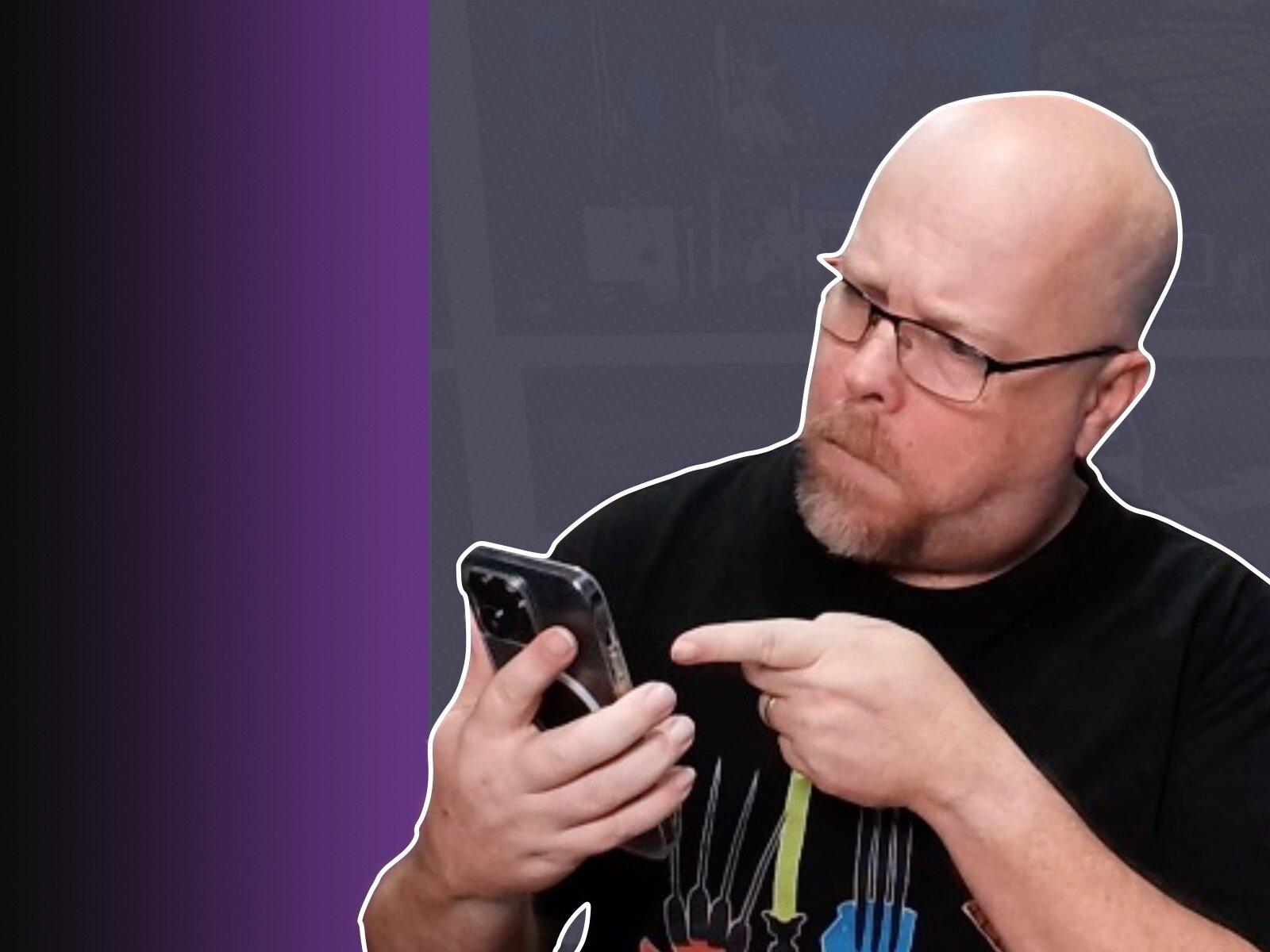

I put Riverside's mobile app to the test for live streaming and recording over the past three weeks, and it's been a mix of genuinely impressive and genuinely frustrating.
The app makes it fast and easy to start recording or go live, and the recording quality has held up well every time. The biggest issue is that you can't see audience stream chat from the mobile app or camera view while live, only guest and host chat, which makes real-time interaction with viewers tough. There's also an ongoing snag connecting podcast hosting to Apple Podcasts and YouTube, with support moving slowly. On top of that, the dashboard only works well in Chrome or Edge, and the AI tools were hit or miss, solid for a first draft edit but weak at following specific instructions like title length limits.
Full breakdown is up on the blog: I Tried Riverside's Mobile App for a Live Stream. Here's My Honest Take
If you've used Riverside's mobile app for live streaming, did you run into the same missing chat issue or find a workaround for it?
Recommended Comments